
The app provides flexible options to control how line items are created on bills and receipts. The Line Items section, which can be configured in the Rules section, allows you to choose from three different split modes, depending on how you want amounts allocated.
This guide explains each mode and shows you how to configure them.
Split Modes Overview
In the Rules section under Line Items, the following split modes are available:
Each mode determines how the invoice or bill will be broken into line items.
Single Line Mode
Single Line mode creates a simplified, single-line summary invoice.
You can configure fields such as description, account, tax rate (where applicable), and more.
As the name suggests, the final invoice will contain only one line item, no matter how many source transactions are present. This mode is ideal when you want a clean, aggregated entry.
Split by Rules Mode
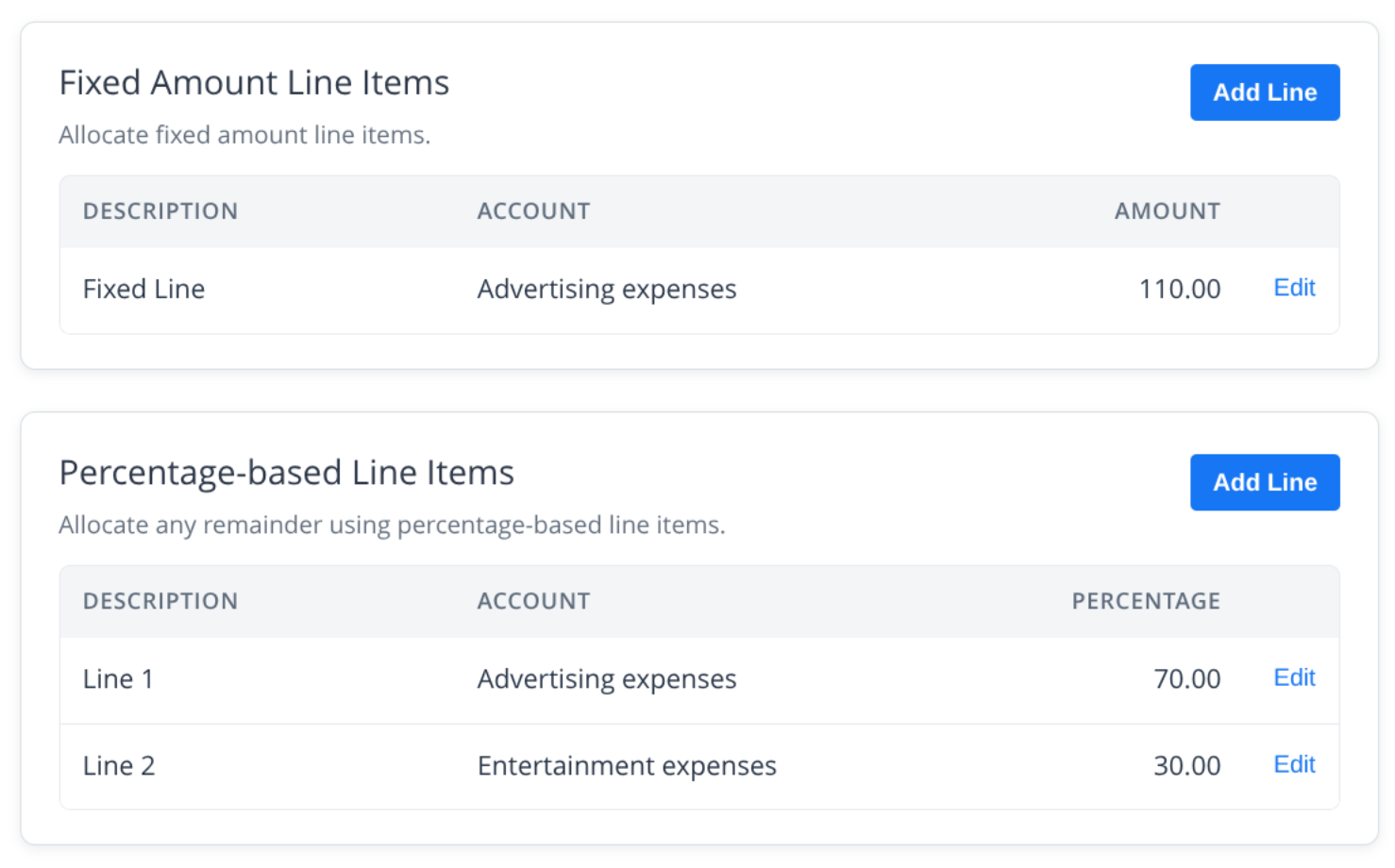
This mode consists of two configurable sections:
1. Fixed Amount Line Items
These line items allocate specific amounts first.
- Add new fixed amount lines using the Add Line button.
- Edit existing lines by clicking Edit next to a line.
If the total fixed amounts do not cover the full invoice amount, the remaining balance is passed to the percentage-based section.
2. Percentage-based Line Items
After fixed amounts, any remaining balance is split based on percentages you define.
Add or edit lines using Add Line and Edit.
Percentages should add up to 100%.
This mode is ideal for allocating expenses or revenue across multiple accounts in precise proportions.
Split by Tax Mode
For countries that support VAT or GST, the Split by Tax mode becomes available.
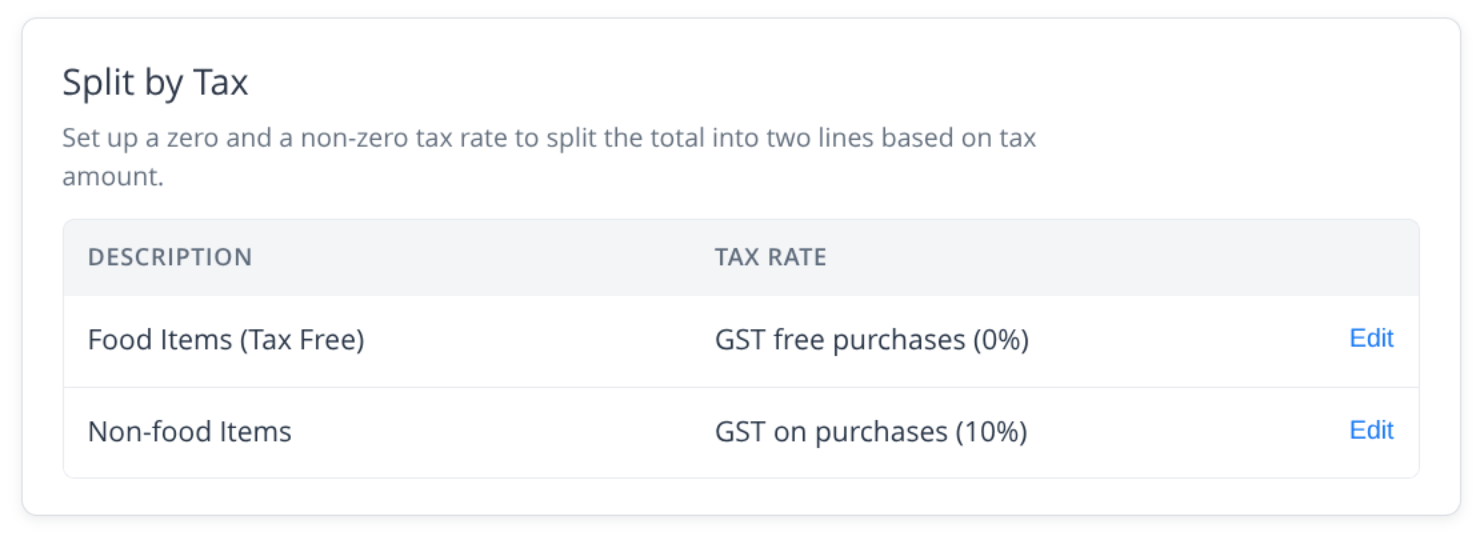
This mode automatically splits an invoice into taxable and tax-free line items based on the tax rates applied.
Requirements
To enable and use this mode, you must configure:
- Exactly one zero tax rate (e.g., GST Free, 0%)
- Exactly one non-zero tax rate (e.g., GST on Purchases, 10%)
How it Works
The application uses the calculated tax amounts to determine how the invoice should be split:
- Amounts associated with the zero tax rate become one line.
- Amounts associated with the non-zero tax rate form the second line.
You can modify each line’s configuration by clicking Edit next to the corresponding item.
This mode is especially useful for purchases involving mixed taxable and non-taxable items.
Summary
The document splitting functionality allows you to customise how line items are handled for bills and receipts:
| Mode | Best For | Result |
| Single Line | Simple summaries | One aggregated line item |
| Split by Rules | Fixed + proportional allocation | Multiple lines based on rules |
| Split by Tax | VAT/GST jurisdictions | Two lines: taxable + non-taxable |
Choose the mode that best fits your workflow, and use the Add Line and Edit options to tailor outputs to your needs.
For AI-based automatic invoice splitting, see:
AutoCode Lines – Rule Configuration Guide